

When related sheets drift apart in style, they slow you down. With Sheets Organizer, Sync Formatting lets you copy the formatting of one sheet to all other sibling sheets within the same folder—so everything stays consistent without manual copying.
Prerequisite: Group Related Sheets into a Folder
Sync Formatting works at the folder level. First, organize the sheets you want to keep consistent into a single folder.
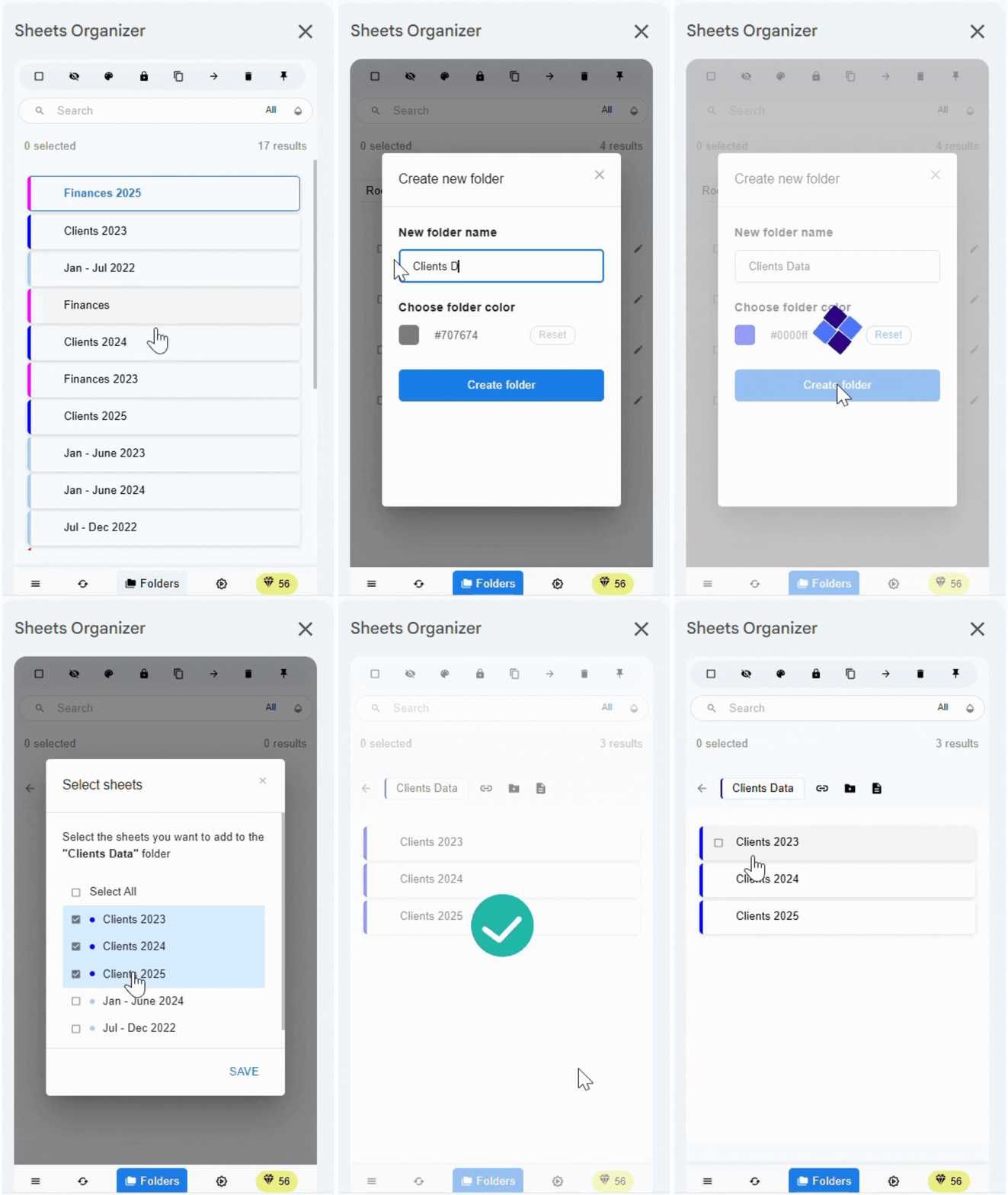
Create a Folder
- 1. Open the folders interface.
- 2. Click the ‘Add Folder’ icon.
- 3. Enter a name and pick a color.
- 4. Click ‘Create’.
Add Existing Sheets to the Folder
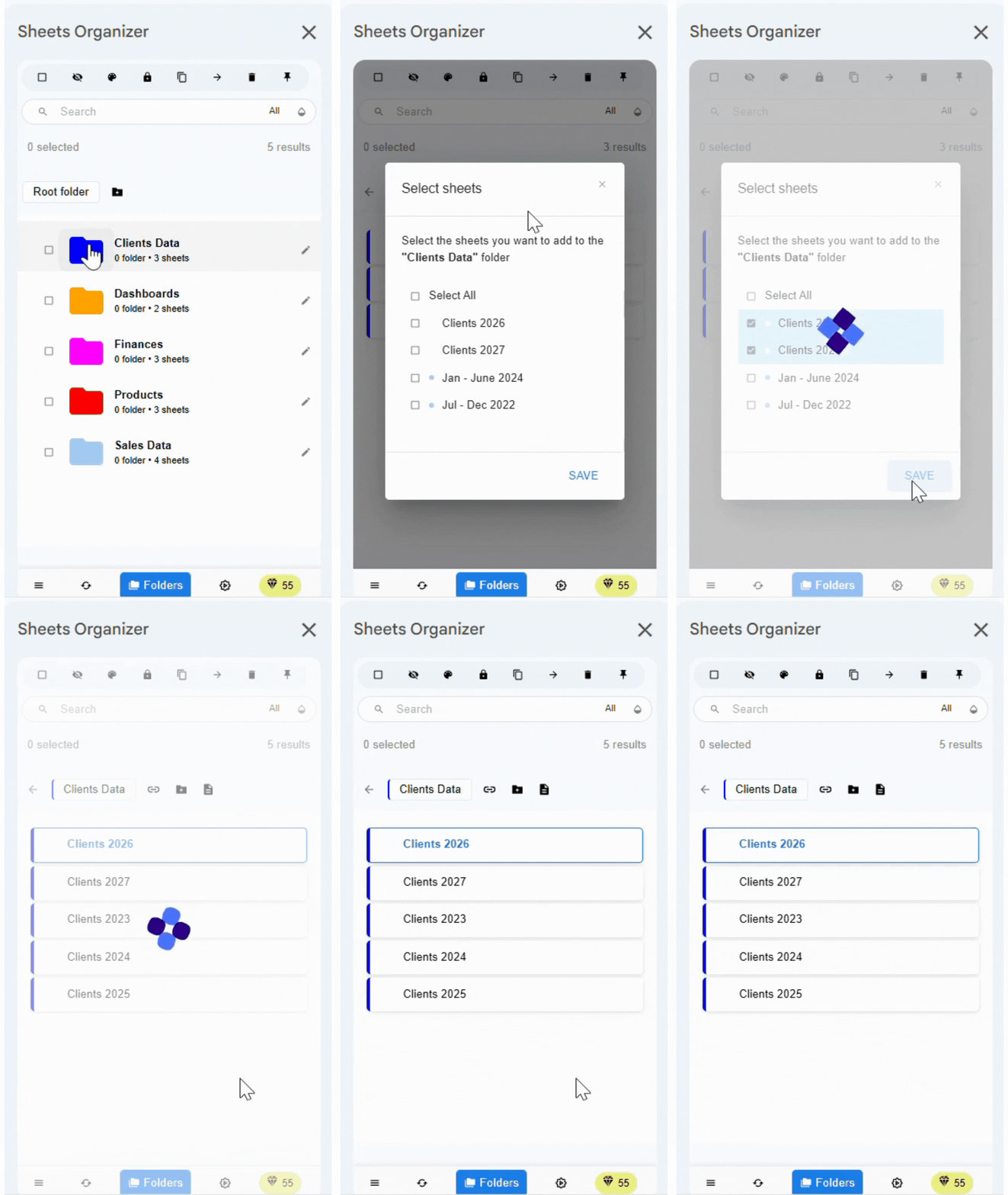
- 1. Open the folder where you want to add sheets.
- 2. Click ‘Add Sheets’.
- 3. Select the sheets to include.
- 4. Click ‘Save’. (Sheets inherit the folder color.)
What Sync Formatting Does
Sync Formatting copies the active sheet’s formatting to all other sheets in its folder. This keeps a consistent visual standard across similar tabs.
- Merged cells
- Borders
- Fonts and colors
- Cell alignment
- Column width
- Number formats
- Conditional formatting
- Text styles (bold, italic, underline)
How to Sync Formatting (3 Steps)
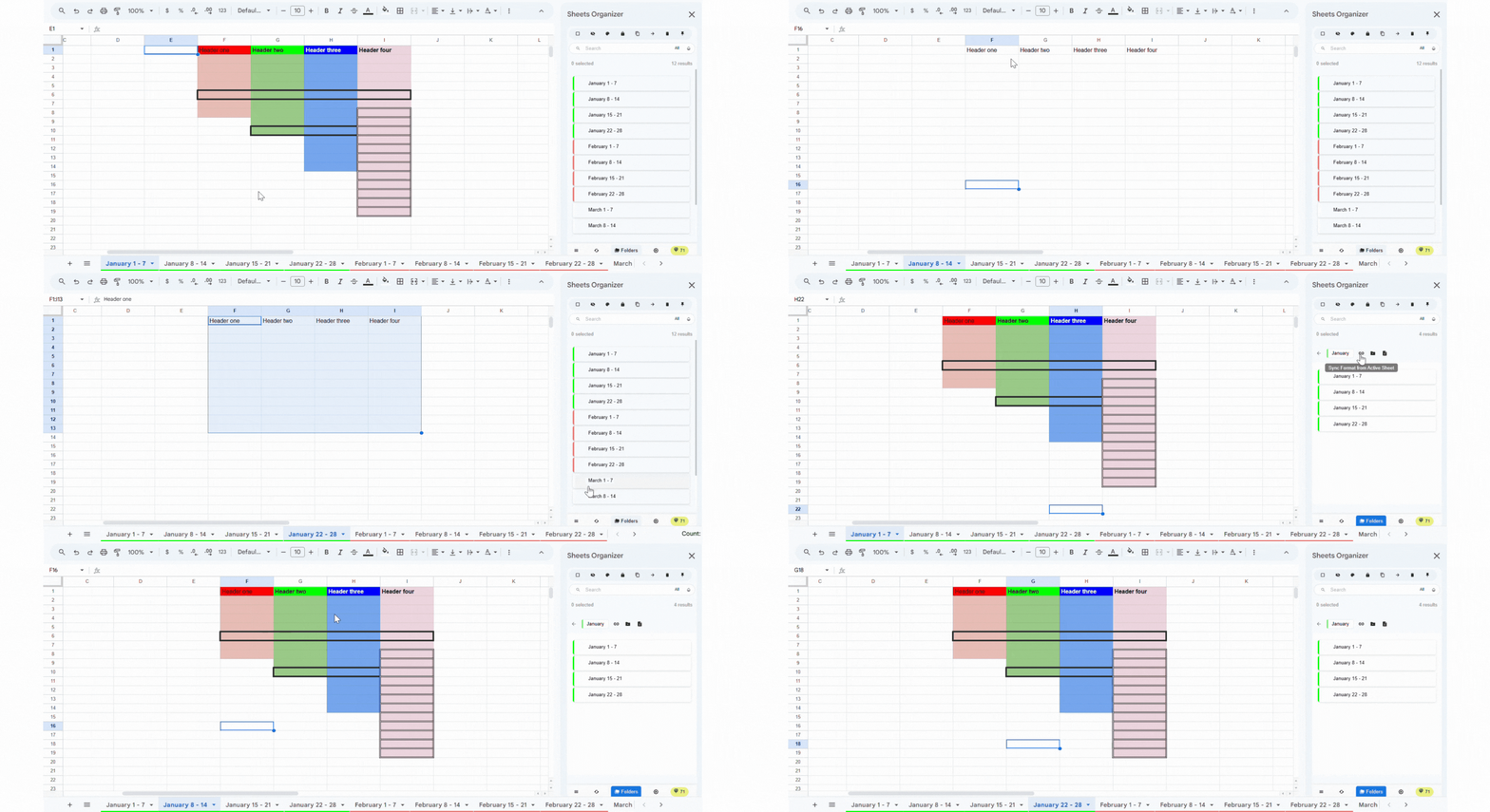
- 1. Open the folder that contains the sheets you want to sync.
- 2. Activate the sheet whose formatting you want to copy.
- 3. Click the ‘Sync Format’ icon in the toolbar to apply it to all other sheets in the folder.
Example: Monthly Reports That Stay Uniform
Let’s say you have several monthly financial report sheets grouped in a folder. You format ‘January 1 - 7’ exactly how you want—headers, borders, number formats. By clicking ‘Sync format from active sheet’, that formatting is applied to every sheet in the folder, so all months look identical and professional.
Why Consistency Matters
- Faster reviews: Stakeholders know where to find things on every sheet.
- Fewer errors: Standardized number formats and styles reduce mistakes.
- Team clarity: Everyone works with the same visual structure.
Best Practices
- Set your ‘template’ sheet first, then sync.
- Group related sheets into folders so they’re easy to target.
- Re‑sync after intentional style changes to keep everything aligned.